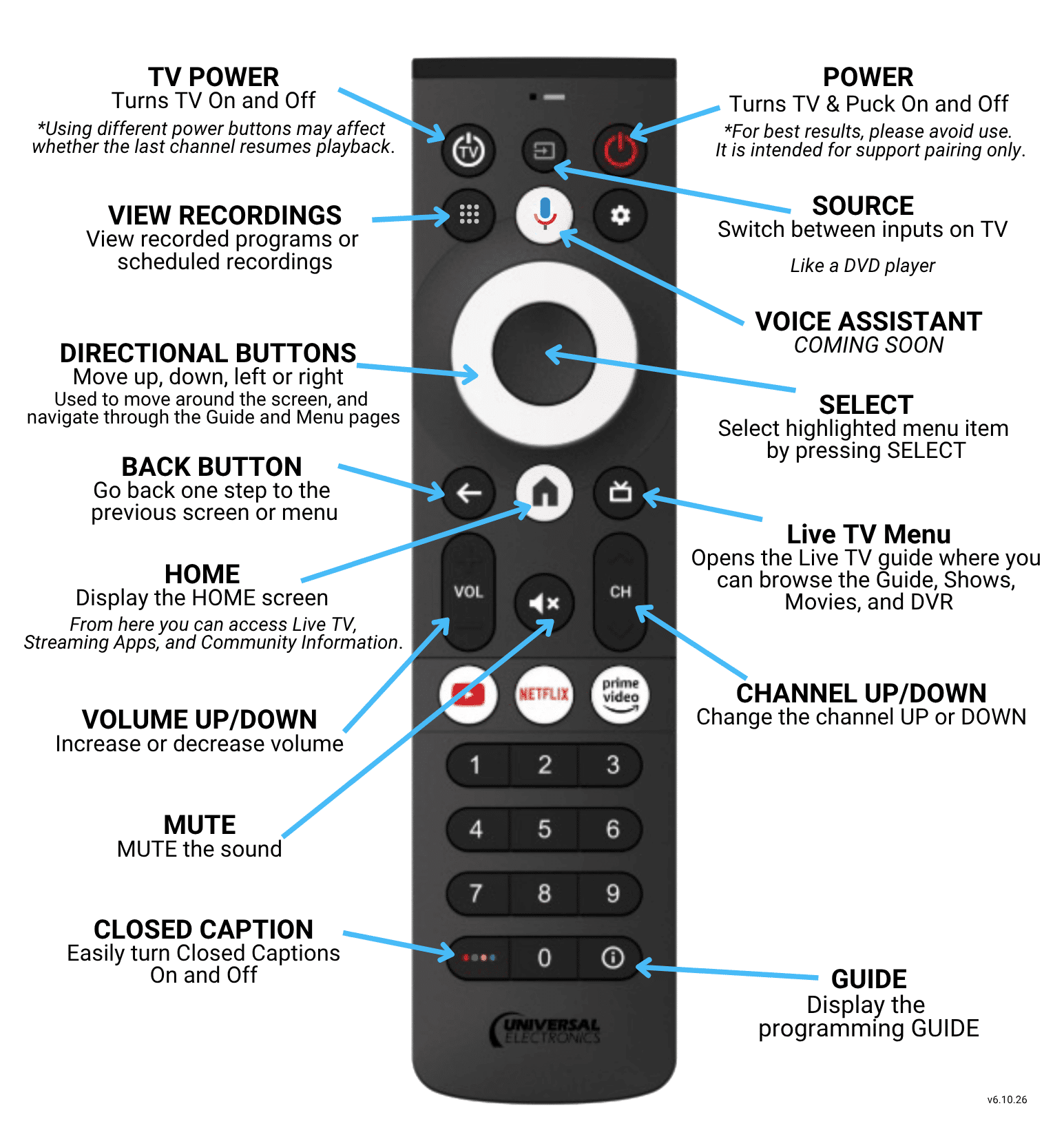
2. To navigate through the GUIDE, use the directional buttons on the remote.
How to Watch Live TV
1. Navigate to CHANNEL GUIDE button and press the OK button on the remote.
2. Once CHANNEL GUIDE is selected, the Guide options will appear.
3. Navigate to Live to see Guide and select programming.
How to Record Programming
1. Navigate to the GUIDE and highlight the desired programming.
2. Press the OK button on the remote.
3. Navigate to RECORD or RECORD SERIES and press the OK button.
4. Confirmation of recording will pop up on the bottom of your screen.
How to View Recorded Programming
1. Press the VIEW RECORDINGS button on the remote.
2. Choose the recording you want to watch.
3. Select recording to PLAY.
Viewing Past Programming
1. On the GUIDE, select Movies, TV Shows, or Sports.
2. Using the directional buttons, scroll through previously aired programming.
How to Look Back 24 Hours
1. Go to the Live Section to access the guide.
2. Scroll left to watch programming from the past 24 hours.
How to Look Forward 6 Hours
1. Go to the Live Section to access the guide.
2. Scroll right to record programming for the next 6 hours.
How to Search for Programming
Searchable programming is available to record up to 7 days in the future.
1. Go to the Live section to access the Guide.
2. Navigate to Search.
3. Type in the name of the program to search.
4. Select the show you would like to record.
How to Personalize Settings
1. Navigate to the Channel Guide.
2. Navigate to Home.
3. Scroll down to select settings.
In the settings, you can modify the inactivity prompt timer, enable closed captioning, and adjust the text scale.
Modifying Inactivity Prompt
Adjusting how long before the TV goes to a screen saver.
1. In Settings, scroll down and select Inactivity Prompt Duration.
2. Scroll right and left to select a new duration.
Enabling Closed Captions
1. In Settings, scroll down and select Enable Closed Captions.
2. Confirmation of change will pop up on the bottom of the screen.
Modifying Text Scale
1. In Settings, scroll down and select Text Scale.
2. Scroll right and left to select a new text size.
How to Access Streaming Apps
1. Navigate to the HOME screen.
2. Highlight the app you would like to view and press the OK button.
3. The selected streaming service will load.
Users must log in with their own credentials to access streaming platforms.
How to Exit LiveOne Music App
1. Find the BACK button on the remote.
2. Press the BACK button until the “Do you want to close LiveOne?” pop-up appears.
3. Highlight Close LiveOne and press the OK button.
How to Exit the Screensaver
If the screensaver appears, press the OK button on the remote to return to the main screen
"Welcome" Screen Loop
Sometimes when the internet goes out, you might see the message “Welcome!” loop with a “Wi-Fi has no internet access” message in the top right corner. This means the Internet Service Provider (ISP) is having an issue, and it is not your puck. Once the ISP resolves the issue, follow the steps below to get back online.
1. Confirm ISP outage has been resolved.
2. Press the HOME button on your remote.
3. Navigate to the “Channel Guide” icon on the screen.
Alternate Remote Control Guide
You may be using a different remote control version. Please see below for the guide to TotalVue’s other remote option.